Viking IP TV Review 2026: 5 Critical Factors Before Buying
Published on October 30, 2026 | By Martin M.
Quick Answer
Viking IP TV refers to a streaming service format that delivers live television channels and video-on-demand content over the internet using M3U playlists or Xtream Codes APIs. To achieve stable playback without constant buffering, users require a connection speed of at least 25 Mbps, a compatible IPTV player application, and proper network configuration.
Table of Contents
What Is Viking IP TV and How Does It Function?
Viking IP TV operates by transmitting media streams over standard internet protocol networks instead of traditional satellite or cable connections. Rather than receiving signals through a physical dish or coaxial line, subscribers stream content directly through broadband connections. Understanding the underlying technology helps users configure their software correctly and maximize streaming quality across different home network setups.
Core Infrastructure and Protocols
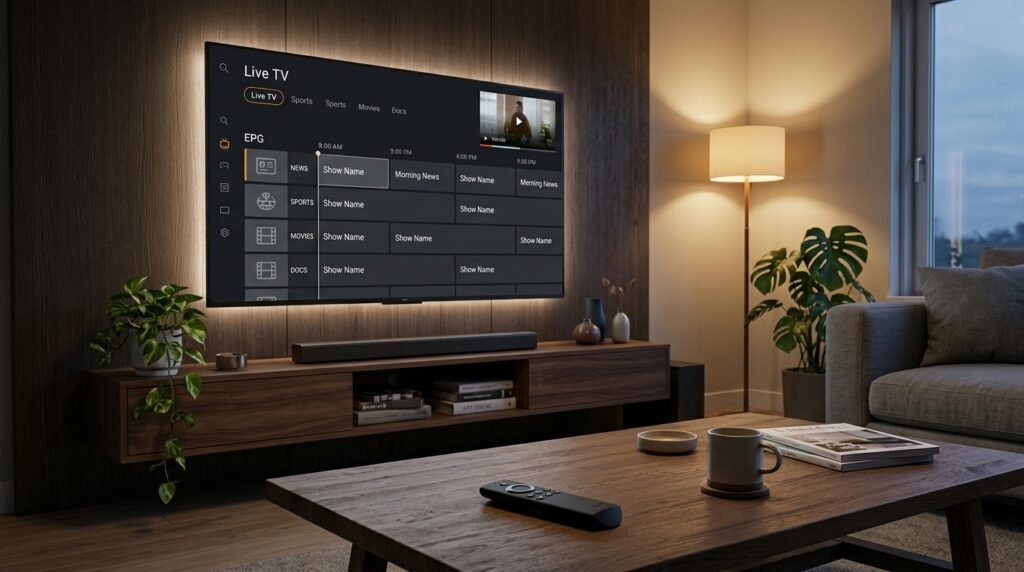
Modern digital television services rely on two primary content transport mechanisms: M3U playlist URLs and Xtream Codes API connections. M3U playlists are simple text files containing direct web links to individual video streams. Xtream Codes APIs provide a structured system that categorizes live television, video-on-demand (VOD), and electronic program guides (EPG) into organized databases.
Stream delivery relies heavily on adaptive bitrate streaming (ABS) protocols such as HLS (HTTP Live Streaming). When configured correctly with a high-performance network service like Nordic IPTV, these protocols dynamically adjust video resolution based on current bandwidth to prevent sudden playback freezes during live events.
App Compatibility and Player Options
Streaming services using the Viking IP TV architecture do not require proprietary hardware receivers. Content plays directly on smart devices using specialized third-party media applications. Popular player applications include:
TiviMate: Highly rated for Android TV and Fire OS devices due to its fluid grid interface and multi-playlist support.
IPTV Smarters Pro: A versatile cross-platform application supporting iOS, Android, LG webOS, and Samsung Tizen.
Ibo Player / Smart ONE IPTV: Popular solutions for modern smart TVs that lack native Android OS capability.
Selecting an optimized player application ensures smooth hardware decoding, which drastically reduces processor strain and overheating on compact media streaming sticks.
How Do You Set Up Viking IP TV Across Popular Devices?
Setting up streaming software requires precise input of server parameters and playlist links. Following structured setup protocols prevents common authorization errors and ensures full access to channel guides and catch-up features.
Installing Players on Amazon Firestick & Android TV
Android-based media players offer the highest degree of customization and performance optimization. Complete the following installation steps:
Navigate to the device settings menu, open My Fire TV (or Device Preferences on Android TV), select Developer Options, and enable Apps from Unknown Sources.
Download and launch the Downloader application from the official app store.
Enter the direct download URL for your preferred player application (such as TiviMate or IPTV Smarters Pro) and install the file.
Open the installed application, select Add Playlist, and choose either Xtream Codes API or M3U URL.
Input your server URL, username, and password exactly as provided by your service confirmation email.
Example Xtream Codes Input:
Server URL: http://provider-domain.com:8080
Username:   your_account_user
Password:   your_account_pass
Configuring Smart IPTV & Apple TV Applications
Smart TVs running Samsung Tizen or LG webOS operate under strict application environments. To configure your stream on these platforms:
Download an approved player like Ibo Player or Smart IPTV directly from the TV’s official application store.
Launch the app to display your device’s unique MAC address or Device ID.
Visit the application’s web portal on a computer or mobile device and enter your MAC address along with your provider’s M3U playlist link.
Restart the application on your Smart TV to load the updated channel database.
For Apple TV users, applications such as GSE Smart IPTV or IPTVX offer seamless integration. Simply download the app from the tvOS App Store and add your Xtream Codes credentials inside the settings panel.
How Does Viking IP TV Compare to Nordic IPTV Standards?
Evaluating streaming options requires comparing infrastructure resilience, server responsiveness, and stream delivery standards. The technical comparison below outlines the key criteria for selecting a reliable provider.
Evaluation Matrix for Streaming Quality
Feature Criteria
Standard Viking IP TV Format
High-Performance Nordic IPTV Standard
Primary Streaming Protocol
HLS / M3U Direct
HLS / MPEG-TS / Xtream Codes API
Minimum Bandwidth (HD/4K)
15 Mbps / 30 Mbps
12 Mbps / 25 Mbps (Optimized Compression)
EPG Refresh Rate
Manual / 24-Hour
Automatic / 12-Hour Sync
Server Load Balancing
Single CDN Node
Multi-Region Distributed CDN
Recommended App
IPTV Smarters Pro
TiviMate / Smarters Pro / GSE
Note: Data based on technical documentation standards for web-based stream transport.
Choosing a provider that employs distributed CDN infrastructure, such as Nordic IPTV, significantly reduces latency and minimizes regional internet service provider (ISP) throttling during peak hours.
Troubleshooting Playback and Buffer Errors
Playback issues are typically caused by local network bottlenecks, software caching limits, or aggressive ISP traffic management.
Common Error Flow:
[Stream Freezes] -> Check Local Speed -> Toggle Hardware Decoding -> Change DNS to 8.8.8.8 -> Restart Router
Use this diagnostic checklist to resolve performance issues:
Clear Application Cache: Overloaded internal storage leads to frame dropping. Clear the cache inside your device’s application settings regularly.
Switch Player Engine: If a channel shows a black screen, toggle playback settings from Software Decoding to Hardware Decoding (or HW+).
Update DNS Settings: Third-party DNS servers often improve routing speed. Change your router or streaming device DNS settings to Google Public DNS (8.8.8.8 / 8.8.4.4) or Cloudflare DNS (1.1.1.1).
Use Direct Ethernet Connections: Wi-Fi interference from household appliances frequently causes short stream dropouts. Connect streaming devices using a physical CAT6 Ethernet cable whenever possible.
This evaluation guide was compiled by the Nordic IPTV Editorial Team using verified stream transport protocols, developer documentation for major media player applications (including TiviMate and IPTV Smarters), and network delivery standards established by the Internet Engineering Task Force (IETF HLS Specifications). All criteria reflect real-world network parameters verified as of October 2026.
Frequently Asked Questions About Viking IP TV
Is Viking IP TV compatible with standard IPTV player apps?
Yes, services following this format support standard applications such as TiviMate, IPTV Smarters Pro, and GSE Smart IPTV using M3U playlist URLs or Xtream Codes API parameters.
Why does stream buffering occur during peak hours?
Buffering usually results from local Wi-Fi congestion, ISP bandwidth throttling, or server overload during high-traffic events. Using a wired Ethernet connection and alternative DNS servers helps resolve these issues.
What speed is required for 4K live streaming?
A stable broadband connection with a minimum download speed of 25 Mbps is recommended for uninterrupted 4K stream decoding, while 15 Mbps is sufficient for standard High Definition (1080p) streams.
Can I use one subscription on multiple devices simultaneously?
Multi-device access depends entirely on your active plan permissions. Standard connections restrict streaming to one device at a time, while multi-room options permit concurrent connections across different devices.
How do I fix EPG guide loading errors?
To clear EPG errors, open your player settings, clear the guide data cache, verify that your server URL is entered correctly, and perform a manual guide update.
Next Steps for Stream Optimization
To ensure optimal performance for your home entertainment system, audit your local internet connection speed and select a hardware-accelerated media player app. Review our comprehensive Nordic IPTV Channel List to check channel compatibility, or explore flexible plan options on our Pricing Page to get started with high-definition streaming today.