Nordic IPTV Flashback Fix: 7 Ways to Stop Buffering Now
Published on October 31, 2026 | By Martin M.
When streaming live television or on-demand content through Nordic IPTV, encountering sudden interruptions, looping feeds, or playback stuttering – often referred to as a flashback or buffer loop – can disrupt your viewing experience. Understanding why these hiccups occur is the first step toward achieving a seamless, high-definition entertainment setup on your home network. Whether you are using a dedicated streaming stick, a smart TV application, or an advanced set-top box, maintaining reliable performance requires a balance of stable internet bandwidth, correct app configuration, and optimized device caching.
Table of Contents
Understanding the Nordic IPTV Flashback Phenomenon
A playback flashback or unexpected stream loop on Nordic IPTV usually happens when the local media player fails to receive data packets fast enough from the remote server. High-definition live broadcasts and sports feeds demand a continuous, uninterrupted data stream. If your device experiences a momentary drop in data packets, the player may attempt to reload or jump back a few frames to resynchronize the audio and video tracks, creating a frustrating stutter.
What Triggers Live Stream Stuttering and Lag Loops
Several distinct factors contribute to live stream disruptions. Network congestion during peak evening hours is a primary culprit, as local internet service providers (ISPs) may throttle high-bandwidth protocols. Additionally, outdated app versions or overloaded local cache memory on your streaming hardware can prevent smooth buffer management. According to tech industry reports on Streaming Media, maintaining a consistent download rate is far more critical for live video stability than raw peak download speeds.
How Nordic IPTV Delivers High-Bitrate Feeds
Nordic IPTV utilizes robust streaming protocols such as HLS and MPEG-TS to deliver crystal-clear regional and international channels. These formats prioritize visual fidelity, packing substantial data into every second of playback. When configured correctly alongside an efficient Electronic Program Guide (EPG) provider, users enjoy high frame-rate sports and entertainment. However, these high-bitrate streams leave very little margin for error if home network fluctuations occur. For more details on service plans and compatibility, explore the pricing overview and review the comprehensive channel list to match your bandwidth capabilities.
Performance Factor
Optimal Requirement
Potential Risk
Download Speed
25+ Mbps stable connection
Under 15 Mbps or fluctuating Wi-Fi
Hardware RAM
2GB RAM or higher
Budget sticks with low memory
App Cache
Regularly cleared weekly
Bloated storage causing freezes
Protocol
HLS / Xtream API integration
Outdated playlist links
Key Takeaway: High-resolution IPTV streams demand stable, unthrottled bandwidth and clean device memory to prevent playback loops and stuttering.
Diagnosing Your Network and Connection Stability
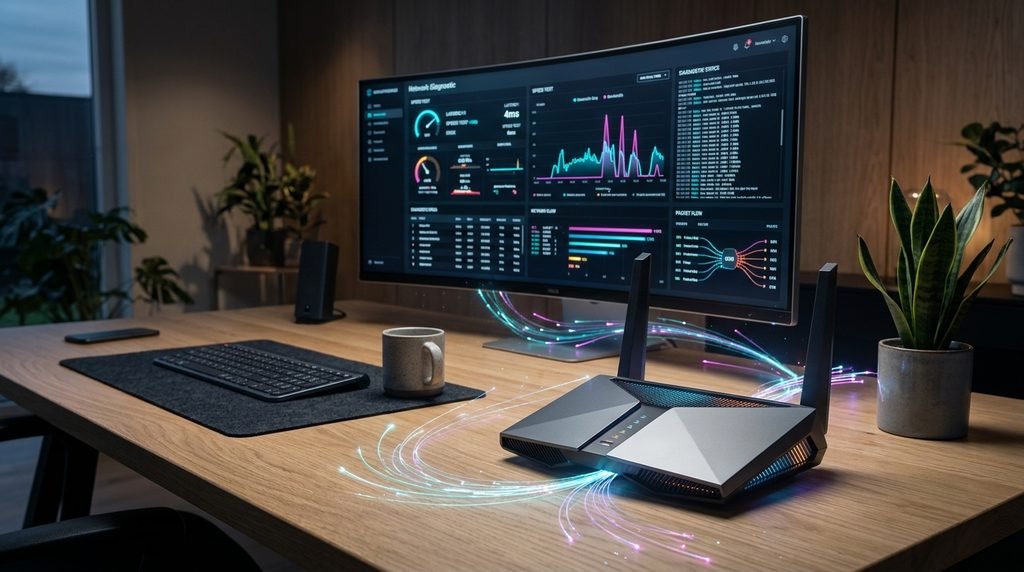
Pinpointing the root cause of a playback flashback begins at your router and internet service provider. Many users mistakenly assume their internet package is at fault when the actual bottleneck lies in local wireless interference or background downloads happening on other connected household devices.
Testing Actual Bandwidth vs. ISP Throttling
Run a direct speed test from the specific device you use for streaming rather than a separate computer or phone. Look closely at metrics beyond raw download speed, specifically ping and jitter. High jitter values indicate inconsistent packet delivery, which directly triggers video buffering and loopbacks. If your speeds drop significantly during peak evening hours, consider reviewing technical advice from TechCrunch regarding broadband management and router quality-of-service (QoS) settings.
Optimizing Wi-Fi Bands and Ethernet Routing
Whenever possible, connect your streaming box or smart TV directly via an Ethernet cable to eliminate wireless interference. If Ethernet is not feasible, switch your Wi-Fi connection from the congested 2.4 GHz band to the 5 GHz band, ensuring your device sits within direct line-of-sight of the wireless router. For further guidance on setting up your streaming environment, visit the FAQ page or reach out directly through the contact us portal.
Key Takeaway: Hardwiring your streaming device with an Ethernet cable eliminates Wi-Fi dropouts and dramatically reduces live stream playback interruptions.
Device-Specific Configuration and Cache Management
Different hardware platforms handle video decoding and memory allocation in unique ways. Ensuring your preferred player app is correctly configured can eliminate persistent software-level glitches.
Clearing App Data on FireStick and Android TV
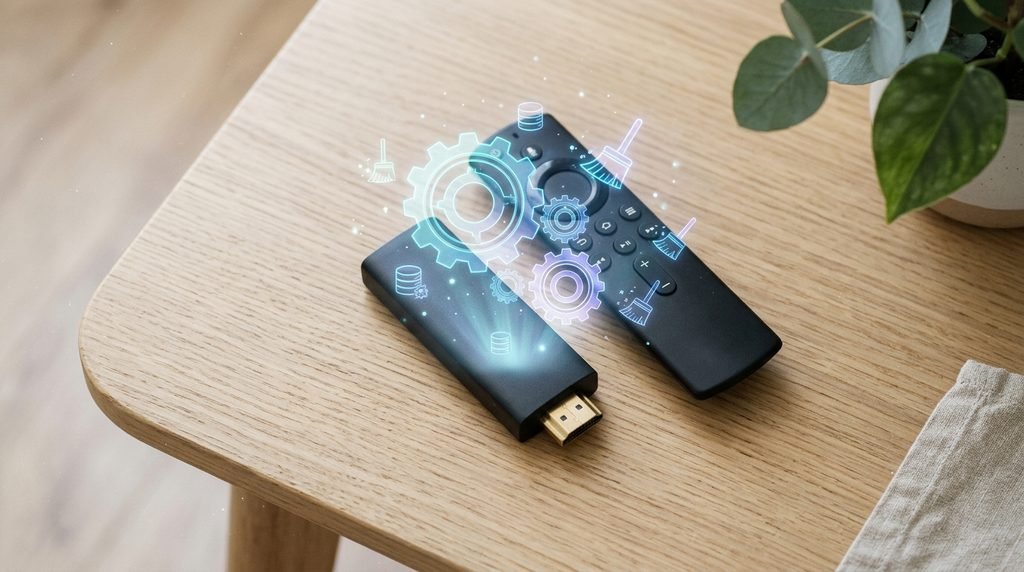
Streaming applications like Tivimate, IPTV Smarters, or XCIPTV accumulate temporary cache files over time. When these cache directories become overloaded, the app struggles to manage live buffer rings. Navigate to your device settings, locate your installed applications, clear the cache, and restart the device. For additional assistance with platform compatibility and initial setup steps, consult the free trial guide before committing to a long-term configuration.
Updating Media Players and External EPG Sources
Running outdated software versions can expose your setup to known memory leaks and decoding inefficiencies. Always update your IPTV player to the latest stable release provided by the developer. Furthermore, ensure your EPG update interval is set reasonably—such as once every 24 hours—rather than every time you launch the app, as frequent background refreshes can choke available system memory. Review our terms of service for details on software usage and client responsibilities.
Key Takeaway: Regular maintenance, including clearing app cache and updating media players, prevents memory bloat and stabilizes stream playback.
Frequently Asked Questions and Next Steps
What causes a Nordic IPTV flashback loop?
A flashback loop occurs when local network jitter or low bandwidth causes the media player to drop data packets, forcing the application to resynchronize and reload the stream.
How can I stop my live stream from buffering?
Switch to a 5 GHz Wi-Fi band, connect via Ethernet if possible, clear your application’s temporary cache, and ensure your device firmware is fully updated.
Does VPN usage affect IPTV performance?
Yes, using an overcrowded or distant VPN server can add latency and reduce your effective download speed, leading to increased buffering and video stutters.
How often should I clear my IPTV app cache?
Clearing your application cache every two weeks helps prevent temporary file bloat and keeps live streaming performance running smoothly.
Where can I check device compatibility details?
You can review detailed hardware recommendations and setup instructions by visiting the Nordic IPTV blog and about us page.
Next-step block:
To put these solutions into practice, restart your home router, clear the cache on your preferred streaming application, and test a high-definition channel to verify immediate playback stability.